Over time, Windows often starts to feel slower, even if it previously ran smoothly. One of the main causes is the buildup of junk files such as temporary files, system cache, leftover application logs, and unused update files. These files are automatically created by Windows and various applications to speed up certain processes, but when left unchecked, they can actually put extra strain on the system.
Many users assume that a slow Windows system must be fixed by reinstalling the operating system or upgrading hardware. In reality, the solution is often much simpler. By regularly cleaning up junk files on Windows, system performance can feel lighter, storage space becomes more available, and the risk of minor system errors can be reduced.
The good news is that cleaning junk files in Windows can be done without any additional software and is safe for beginners. This article will walk you through step-by-step methods to clean junk files on Windows using built-in system features, which can be applied to both Windows 10 and Windows 11 to help prevent slow performance.
Causes of Junk File Buildup in Windows
Junk files in Windows do not appear randomly. They are created through daily system processes and user activities. If not cleaned regularly, these files will continue to accumulate and can negatively affect Windows performance. Below are some of the main causes:
1. System and Application Cache
Windows and various applications store cache files to speed up loading processes. However, cache files that are kept for too long or are no longer needed can take up storage space and make the system feel heavier.
2. Temporary Files
When opening applications, installing programs, or running updates, Windows creates temporary files. Some of these files are not automatically deleted after the process is complete and eventually accumulate in the Temp folder.
3. Leftover Windows Update Files
Each Windows update leaves behind leftover update files as backups. If the update runs successfully, these files are usually no longer needed, but they remain stored and consume disk space.
4. Log Files and Error Reports
Windows saves system logs and error reports for diagnostic purposes. Over time, these log files can build up, especially if crashes or minor errors occur frequently.
5. Recycle Bin Is Rarely Emptied
Deleted files are not permanently removed right away. They are moved to the Recycle Bin. If the Recycle Bin is never emptied, those files will continue to occupy storage space.
By understanding the causes of junk file buildup in Windows, users can become more aware of the importance of regular system maintenance to keep performance optimal and prevent Windows from becoming slow.
Cleaning Junk Files
One of the most practical and safe ways to clean junk files in Windows is by using the Run feature. This feature allows users to directly open specific system folders that contain temporary files and cache. Because it uses built-in Windows functionality, this method does not require any additional software and is safe even for beginners.
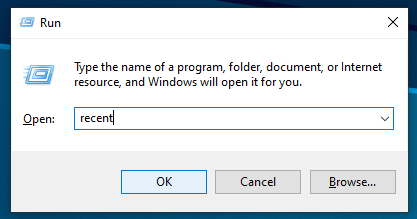
The Recent folder can be opened by pressing Win + R and typing recent. This folder stores a history of files and documents that were previously opened. Deleting the contents of the Recent folder will not remove the original files. It only clears the access history. Although the size is usually small, cleaning it can help keep the system organized.
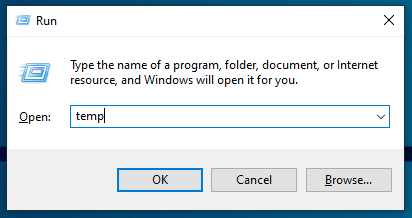
Next, users can clean temporary files from the Temp folder by opening Run and typing temp. This folder stores various temporary files created by Windows and applications while they are running. Most of the files inside are safe to delete. If some files cannot be removed because they are currently in use by the system, they can simply be skipped without causing any issues.
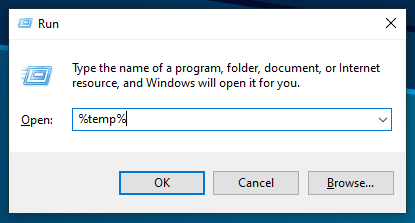
In addition to Temp, Windows also has a %temp% folder that contains temporary files specific to the currently active user account. This folder often becomes a place where a large number of junk files accumulate. By deleting the contents of the %temp% folder, storage space can be freed up and system performance can feel lighter.
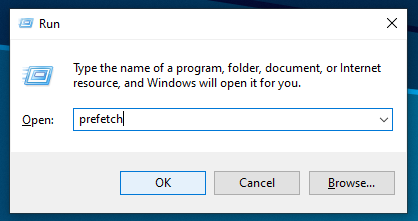
Another folder that can be cleaned through Run is Prefetch, which can be opened by typing prefetch. This folder stores data used to speed up application launch times. Clearing the contents of the Prefetch folder will not damage Windows, as the system will automatically recreate the necessary files when needed. In fact, cleaning this folder can help reduce storage usage over time.
Cleaning junk files through Run should be done regularly, such as once every one or two weeks. As long as only the contents of the folders are deleted and not the folders themselves, this method is safe and effective in helping Windows run smoothly without feeling slow.
Emptying the Recycle Bin
When you delete a file in Windows, it is not immediately removed permanently. Instead, it is moved to the Recycle Bin. As long as the files remain in the Recycle Bin, they continue to take up space on your hard drive or SSD. If the Recycle Bin is rarely emptied, storage capacity will gradually decrease without notice and may affect Windows performance.
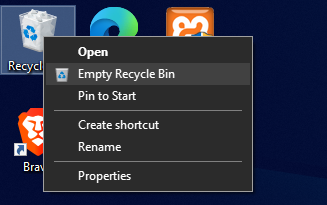
Emptying the Recycle Bin can be done by right-clicking the Recycle Bin icon on the desktop and selecting Empty Recycle Bin. After confirmation, all files inside will be permanently deleted. Therefore, make sure there are no important files you still need before emptying it.
Regularly cleaning the Recycle Bin is highly recommended, especially if you often delete large files such as videos, application installers, or downloaded files. With an empty Recycle Bin, storage space becomes more available and Windows can operate more efficiently without being burdened by files that are no longer needed.
Cleaning Up Disk Cleanup
In addition to the manual method using Run, Windows also provides a built-in feature called Disk Cleanup, which is designed to clean junk files more thoroughly. This feature can detect various types of unused files, such as temporary files, system cache, and leftover Windows update files that are no longer needed.
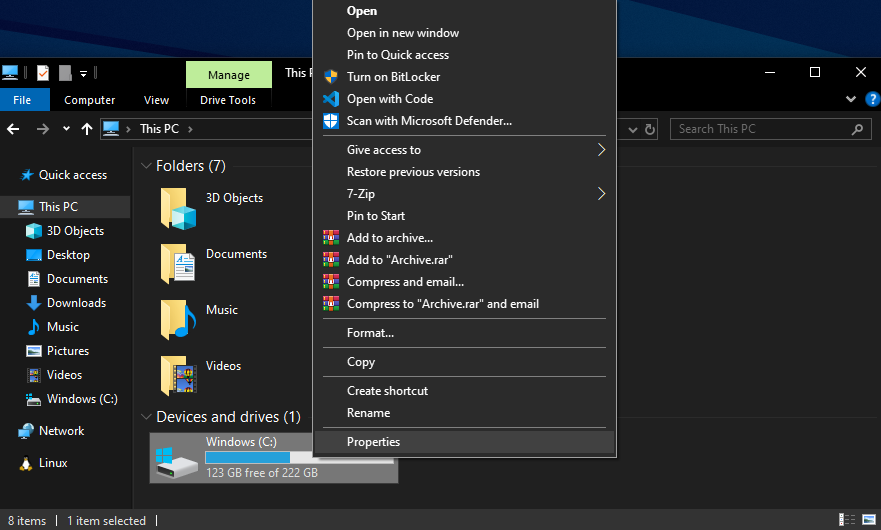
Disk Cleanup can be accessed by opening This PC, then right-clicking Drive C, selecting Properties, and clicking the Disk Cleanup button. After the scanning process is complete, Windows will display a list of junk files that can be removed. These files are safe to delete and will not affect personal user data.
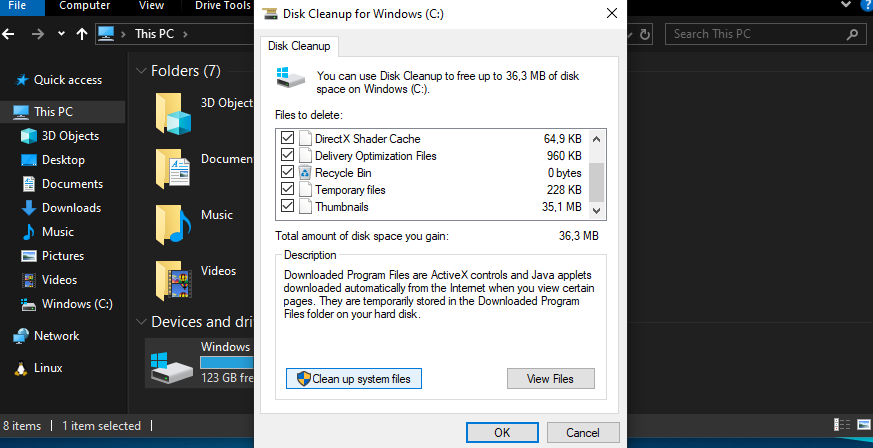
For more optimal results, users can select the Clean up system files option. This allows Windows to scan system-level junk files, such as leftover Windows updates, log files, and additional cache. After choosing the types of files to delete and clicking OK, Windows will automatically remove the selected files.
Using Disk Cleanup on a regular basis is highly recommended, especially when storage space on Drive C starts to run low. By cleaning junk files with this feature, Windows performance can feel lighter and the system becomes more responsive without the need to install additional software.
Safe Tips for Cleaning Junk Files
Cleaning junk files in Windows is generally safe as long as users understand the limits. Make sure to delete only the contents of temporary file locations, such as those found in the Temp, %temp%, Recent, Prefetch, and Recycle Bin folders, or through Disk Cleanup. Avoid deleting important system folders like Windows or System32, or any files whose purpose you do not understand. If certain files cannot be deleted because they are currently in use by the system, it is best to skip them to prevent errors.
Many users wonder whether cleaning junk files can make Windows faster. Technically, cleaning junk files does not increase hardware specifications, but it can help Windows run more smoothly. Freeing up storage space allows the system to manage files more efficiently, reduces disk read and write load, and lowers the risk of minor lag, especially on devices with limited storage capacity or lower specifications.
In conclusion, cleaning junk files is a basic maintenance step that should be done regularly. This method is simple, does not require additional software, and is effective in keeping Windows performance stable. By making junk file cleanup a routine habit, Windows will feel more responsive, storage will not fill up as quickly, and the system will be more comfortable to use in the long term.